Development workflow
The shortest loop for building a Tintero plugin, why it works the way it does, and how to develop without the app running at all.
On this page
Installing a plugin the normal way means zip it, open Settings, uninstall the old copy, install the new one, reopen the panel. Five steps for a one-line CSS change. Nobody works like that for long.
Loading a plugin locally cuts it down to one. You rebuild the zip and the app picks it up.
Load a plugin locally
Settings → Plugins → Load local plugin (dev), then pick your .zip.
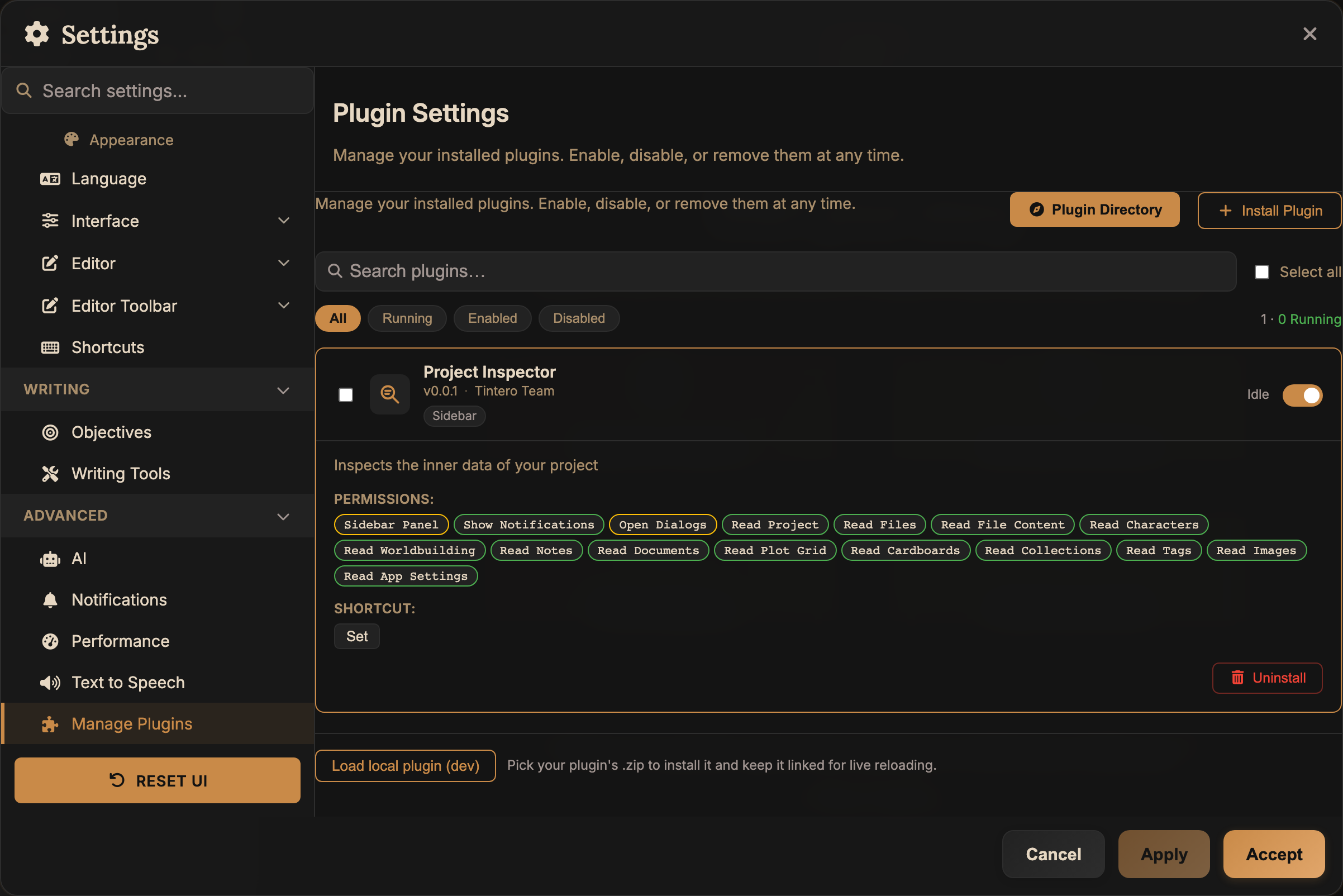
This is an ordinary install, with the same checks and the same permission dialog. The one difference is that Tintero remembers where the zip came from, and that is what lets it reload without asking you for the file again.
You approve permissions once. Reloads reuse what you already approved, so the dialog does not come back on every rebuild.
Reload
Any plugin you loaded this way gets a Reload button. It:
- Reads the
.zipagain from disk. - Reinstalls the files.
- Starts the plugin back up wherever it was running, in the same places.
That third point is the one you feel day to day. If your sidebar panel was open, it is open again afterwards, not closed and not somewhere else.
It is also a genuinely clean restart. The frame is rebuilt from scratch every time, so there is no stale cache and no leftover state to confuse you. The thing bundlers work hard to fake, you get here for free.
Auto-reload
Turn on Auto-reload and Tintero watches the .zip and reloads whenever it changes. Your
whole loop becomes:
# edit plugin.js, then:
cd my-plugin && zip -FSr ../my-plugin.zip .
Save, run the zip command, and the panel refreshes on its own a second or so later. Hook that up to your editor’s on-save or a file watcher and you stop touching the app at all.
A few things worth knowing:
- It checks the file rather than listening for changes, comparing the modification time and size roughly every second and a half. It does not lock the zip, and it costs nothing you could measure.
- A failed reload does not keep retrying. If it catches your zip half-written, it fails once and waits for the next real change. Look in the app console for the reason rather than wondering why it went quiet.
- If the zip disappears, moved, renamed or cleaned up by a build script, watching stops itself instead of complaining every second. Load it again from wherever it is now.
- Watching is not remembered. It stops when you close Tintero, so turn it on again next time.
Wiring it to a watcher
Anything that runs a command when a file changes will do. With
entr:
ls plugin.js plugin.json plugin.css | entr -s 'zip -FSr ../my-plugin.zip .'Or as an npm script, if you already have a package.json:
{
  "scripts": {
    "package": "zip -FSr ../my-plugin.zip plugin.json plugin.js plugin.css",
    "watch": "nodemon --watch . --ext js,json,css --exec 'npm run package'"
  }
}
Desktop only
Reload and auto-reload both need to read a file back off disk, and on the desktop that works because picking the file through the system dialog is what gives Tintero access to it.
On the web and on mobile the file picker never hands over a path, so neither is available. Loading a local zip still works. You just reinstall it yourself to update.
Changing permissions mid-development
Seeing what your plugin logs
console.log, console.warn, console.error and console.info from inside your plugin all
come out in the app’s console, tagged [Plugin:<your-id>]. So do uncaught errors and unhandled
promise rejections, so a crash inside your frame is something you can read rather than something
that just stops happening.
The same lines reach tintero.debug.getLogs() (permission
debug.console ), which is how the Dev Console plugin shows them in a
panel inside the app.
Right-clicking to inspect is turned off inside plugin frames, so this is your window in.
Building without the app at all
The fastest loop of all is not needing Tintero open. Your plugin only touches the app through the
tintero global, so fake that and open your plugin as a plain HTML file in a browser. Real
developer tools, instant refresh, no zip step:
// mock-tintero.js: local development only, never ship this
window.tintero = {
  project: {
    getMetadata: async () => ({
      id: '1',
      name: 'Test Project',
      description: 'A stub',
      createdAt: Date.now(),
      lastModified: Date.now(),
      path: '/tmp/test',
    }),
    getCharacters: async () => [{ id: 'c1', name: 'Alice', tags: ['protagonist'] }],
  },
  editor: {
    getWordCount: async () => 1234,
  },
  storage: {
    _store: {},
    get: async (key) => window.tintero.storage._store[key] ?? null,
    set: async (key, value) => {
      window.tintero.storage._store[key] = value;
    },
  },
  ui: { showNotification: (message, type) => console.log('[' + type + '] ' + message) },
  events: { on: () => {}, off: () => {} },
  surface: 'sidebar',
};

window.TinteroPlugin = function () {};
window.registerPlugin = (plugin) => plugin.onActivate?.();
Build your logic against the fake, then load the zip into Tintero for the parts that need the real thing: permissions, surfaces, theming, and how your panel feels at its actual width.
A checklist before you package
- Does every method you call have a matching permission in
scopes? A missing one fails while running, not at install. - Is your
iconan SVG? A PNG installs without complaint and leaves you with no icon. - Does your
mainend in.js? If not, your stylesheet never loads. - Have you called
registerPlugin()exactly once, at the end?